Calibrating Multiple Nodes
This procedure explains how to perform calibration for multiple Intel® Gaudi® nodes with more than 8 cards. It requires execution within a Gaudi Pytorch container.
As an example, we use the Llama 3.1 405B model running in tensor parallelism 16 mode spanning two Intel® Gaudi® 2 nodes.
Prerequisites
Before you start:
- Familiarize with notes and recommendations.
- Ensure that all nodes in your multi-node setup are connected to an Network File System (NFS) mount.
- Ensure you have a multi-node configuration with more than 8 cards.
Calibration procedure
To perform calibration, follow these steps in a Gaudi Pytorch container.
-
Build and install the latest version of vLLM Hardware Plugin for Intel® Gaudi® by following the Installation procedure.
-
Create workspace directory on NFS, clone the calibration scripts repository, and create an empty
quant_config_buffer.jsonfile in the calibration directory. -
Check if all Intel® Gaudi® NIC ports are up and running by using the following commands on the host, not inside the container.
-
Set the following environment variables for all nodes to verify the network interface for inbound and outbound communication.
-
Start a Ray cluster with enough nodes to accommodate the required tensor parallelism size.
-
Run the model calibration script. It will create calibration measurement files in the specified output directory, organized into into subdirectories for each model.
-
Optionally, you can reduce the target tensor parallelism level by unifying the measurement scales. For example, you can perform FP8 calibration on the Llama 3.1 405B model using two Intel® Gaudi® 2 nodes with tensor parallelism set to 16, and then use the unification script to reduce the tensor parallelism to 8. To achieve this, you can add the optional
-rparameter, to thecalibration_model.shscript. This parameter specifies the rank number of the unified measurements. For example, to convert scales from tensor parallelism 16 to 8, set-r 8../calibrate_model.sh -m meta-llama/Llama-3.1-405B-Instruct -d <path-to-dataset>/open_orca_gpt4_tokenized_llama.calibration_1000.pkl -o <nfs-path-to-calibration-output>/fp8_output -l 4096 -t 16 -b 128 -r 8If you have already performed calibration, you can use the
step-5-unify_measurementsscript to convert existing scales, as in the following example. In this case, the-m <path/ID>parameter has to be set to the calibration output directory containing the measurement files.python3 step-5-unify_measurements.py -r 8 -m <nfs-path-to-calibration-output>/fp8_output/llama-3.1-405b-instruct/g2/ -o <nfs-path-to-calibration-output>/fp8_output/llama-3.1-405b-instruct/g2/If the model contains Mixture of Experts (MoE) layers and is calibrated with expert parallelism, use the
-uparameter to unify the original measurement results according to expert parallelism rules, as in the following example: -
Serve the FP8 quantized model.
Recommendations for Advanced Usage for MoE Models
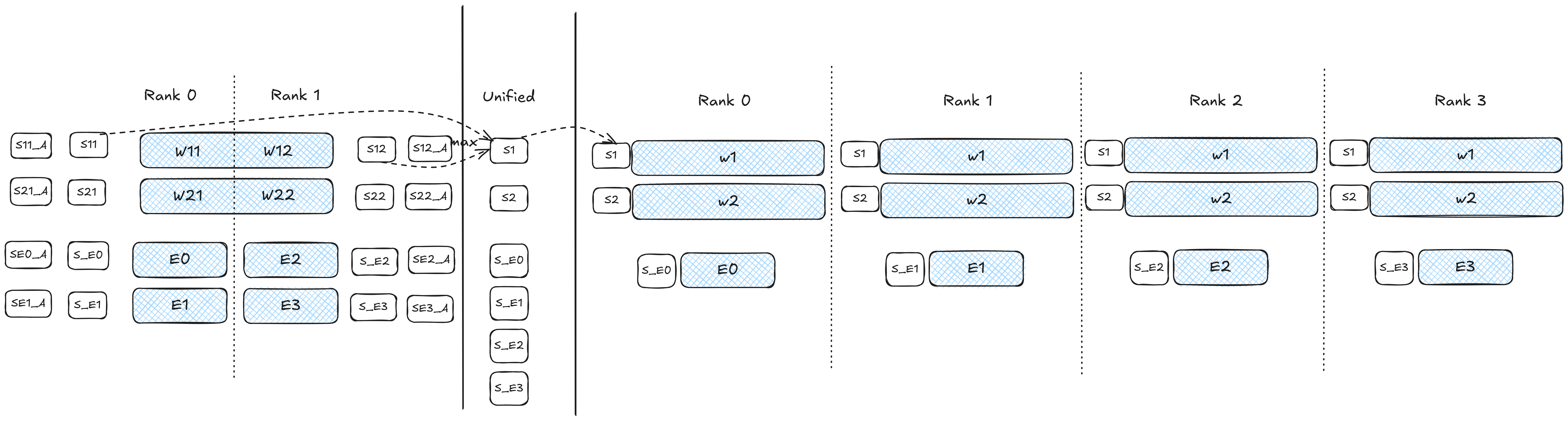
For models with Mixture of Experts (MoE), such as DeepSeek-R1, you can run the calibration once and reuse the results across different expert parallelism and data parallelism configurations, for example, 8, 16, or 32 cards. This process requires:
- Unifying all measurement files onto a single card (TP1).
- Optionally, postprocessing the unified measurements to improve performance.
- Expanding the unified results to the desired number of expert-parallel cards. The
step-6-expand-measurementsscript distributes the expert measurements across the target number of cards, while other values are reused.
The following diagram presents an example in which calibration is performed on 2 cards and deployment occurs on 4 cards.
The following example demonstrates calibration with DeepSeek-R1 on 8 cards, followed by deployment on 16 and 32 cards.
# Unify measurements: TP8 -> TP1
python step-5-unify_measurements.py -m /path/to/measurements/deepseek-r1/g3/ -r 1 -o /path/to/measurements/deepseek-r1/g3-unified-tp1/ -u -s

# (Optional) Postprocess unified TP1
python step-3-postprocess-measure.py -m /path/to/measurements/deepseek-r1/g3-unified-tp1/ -o /path/to/measurements/deepseek-r1/g3-unified-tp1-post/ -d

# Expand to EP16TP1
python step-6-expand-measurements.py -m /path/to/measurements/deepseek-r1/g3-unified-tp1-post/ -o /path/to/measurements/deepseek-r1/g3-unified-tp1-post-expand-ep16 -w 16

# Expand to EP32TP1
python step-6-expand-measurements.py -m /path/to/measurements/deepseek-r1/g3-unified-tp1-post/ -o /path/to/measurements/deepseek-r1/g3-unified-tp1-post-expand-ep32 -w 32